
Fonts not showing up in Photoshop, Illustrator or InDesign on Mac
Most of the time the font just isn't installed yet. Double-click the font file and click Install. Then close and reopen Photoshop, Illustrator or InDesign, and the font will be in the list.
Check if the font is installed
Downloading a font isn't enough: the file has to be installed. Double-click it, and your Mac opens a small window with the font. Look at the bottom of that window:
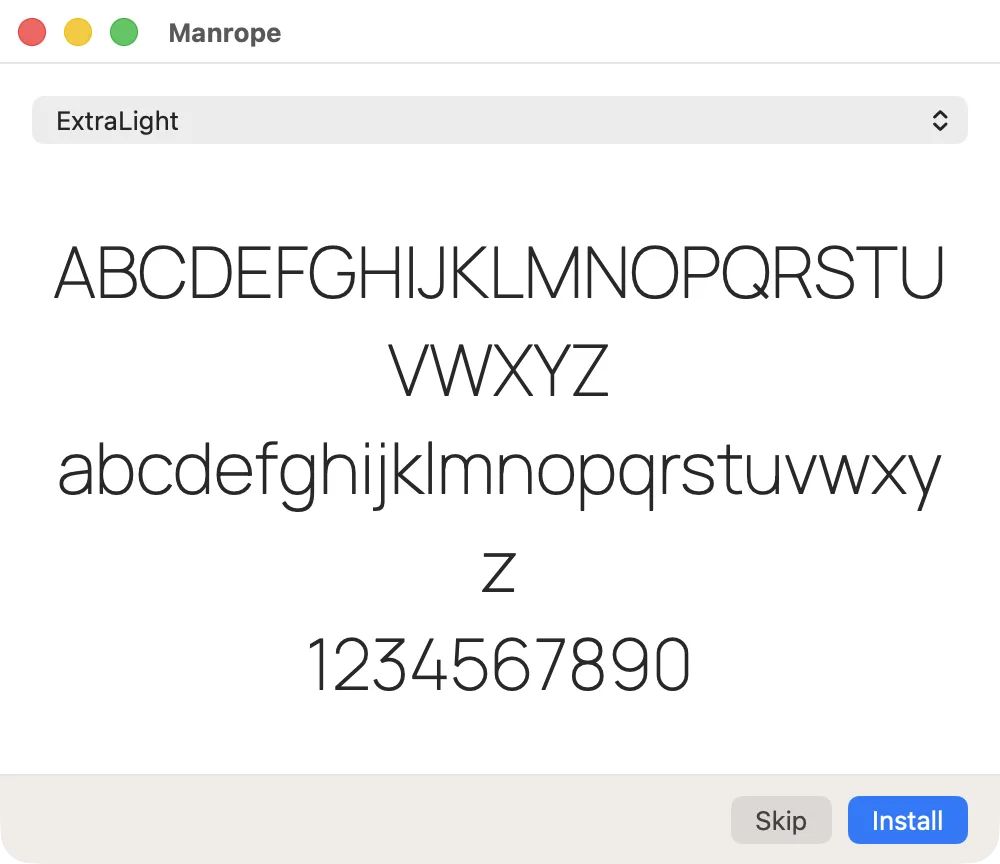
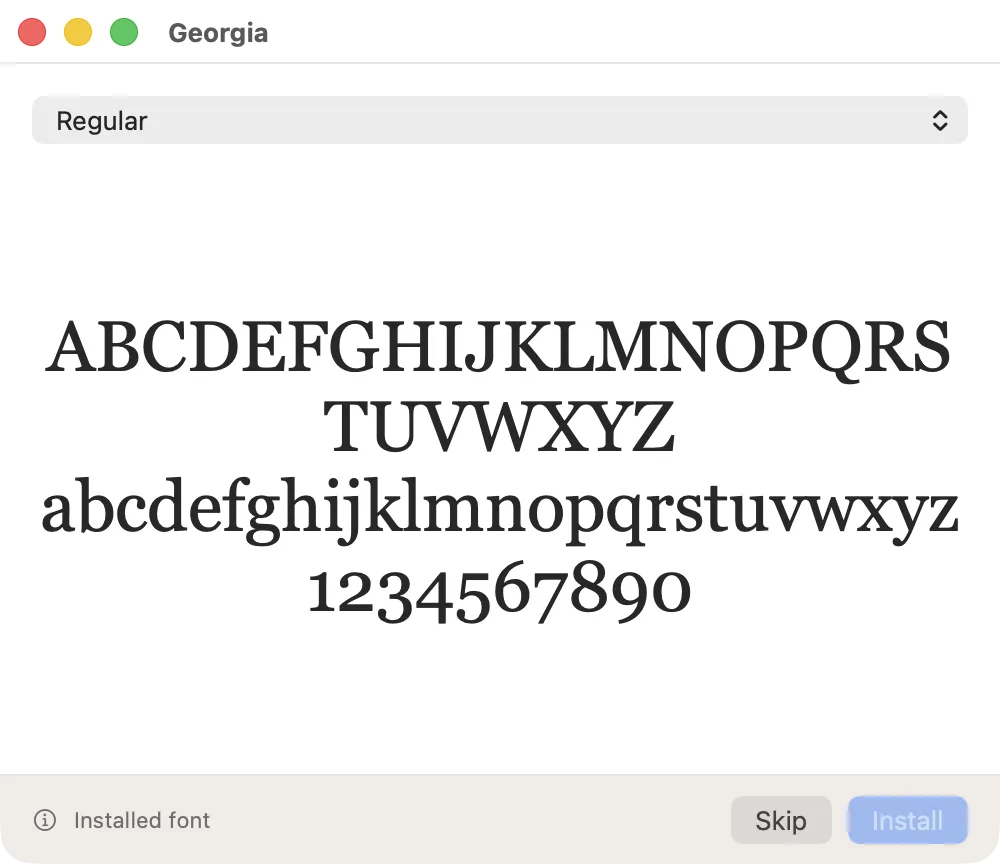
Installed, but still not in the list?
- Restart the app. If Photoshop or Illustrator was open while you installed the font, close it completely and open it again.
- Look for the real name. The font in the list may be called differently from the file. The name at the top of the window from the pictures above is the one to search for.
- Unpack the archive. If you downloaded a .zip file, double-click it first. A folder appears, and the fonts inside it end in .otf or .ttf. Install those.
A file from someone else says fonts are missing
When you open someone else's file in Illustrator or InDesign, a window may list missing fonts. That means these fonts aren't on your Mac. Ask the person who sent the file for them, or find the font by its name, download and install it. Then reopen the file.
If you have a lot of fonts
When there are hundreds of fonts, installing them all gets inconvenient: the font list in Photoshop turns endless. That's what font managers are for. SXfont shows the fonts from your folders as cards in your own text, without installing them all. And when a document needs a font, SXfont switches it on by itself, in Photoshop, Illustrator, InDesign and other apps.
Try SXfont free for 14 days, no card needed.
Download SXfont